

Slow Wi-Fi is one of the most frustrating tech problems because it affects everything work, entertainment, calls, and smart home devices. Before you call your ISP or run out to buy a new router, try these 12 proven fixes from WirelessGearGuide.com. Most of these cost nothing and take less than 10 minutes.
Step 1: Diagnose the Problem First
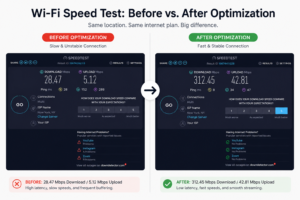
Before fixing slow Wi-Fi, you need to know what’s actually slow. Run a speed test at fast.com or speedtest.net while connected to Wi-Fi, then run the same test with your device plugged directly into the router via ethernet. If wired speeds are also slow, the problem is your ISP connection, not your Wi-Fi. If wired is fast but Wi-Fi is slow, the problem is your home network.
12 Fixes for Slow Wi-Fi
Fix 1: Restart Your Router
This sounds too simple, but it works surprisingly often. Routers run continuously for months and can develop memory issues, cache buildup, and unstable connections over time. Unplug your router for 30 seconds, plug it back in, and wait 2 minutes for it to fully restart. Do this once a month as preventive maintenance.
Fix 2: Move Your Router
Router placement is the single most impactful thing most people can overlook. Your router should be centrally located, elevated (at least 3-4 feet off the ground), in the open air (not inside a cabinet), and away from thick walls, metal objects, and appliances. Moving a router from a closet to an open shelf in the center of your home can double your coverage range.
Fix 3: Change Your Wi-Fi Channel
If you live in an apartment building, your neighbors’ Wi-Fi networks compete with yours on the same channels. For 2.4GHz, the only non-overlapping channels are 1, 6, and 11. For 5GHz, there are many more options. Log into your router admin panel (usually 192.168.1.1) and manually set the channel to the least congested one. Apps like WiFi Analyzer (Android) or Wireless Diagnostics (Mac) show channel congestion.
Fix 4: Switch to the 5GHz Band
If your device is currently connected to the 2.4GHz band, try switching to the 5GHz band (look for ‘YourNetworkName_5G’ in your Wi-Fi list). The 5GHz band is less congested, supports higher speeds, and has lower latency. The trade-off is shorter range, but if you’re within 30 feet of your router, 5GHz is almost always faster.
Fix 5: Update Your Router’s Firmware
Router manufacturers regularly release firmware updates that include performance improvements, bug fixes, and security patches. Log into your router’s admin panel and check for firmware updates. Some modern routers (Eero, Google Nest) update automatically, but older routers require manual updates.
Fix 6: Check for Bandwidth Hogs
Use your router’s admin panel or a network analysis app like GlassWire to identify which devices are consuming the most bandwidth. Background cloud backups (Google Photos, iCloud, Dropbox), software updates, and BitTorrent applications are common culprits. Schedule these tasks for off-peak hours.
Fix 7: Enable QoS (Quality of Service)
QoS lets you prioritize specific types of traffic or devices. If your router supports QoS (most modern routers do), configure it to prioritize video calls and gaming traffic. This prevents your home security cameras or smart TVs from starving your work video calls of bandwidth.
Fix 8: Use a Wired Connection for High-Priority Devices
Ethernet is always faster, more stable, and lower latency than Wi-Fi. If you work from home, plug your desktop or laptop directly into the router with a Cat6 ethernet cable. Smart TVs and gaming consoles also benefit greatly from wired connections. Free up Wi-Fi bandwidth for devices that truly need to be wireless.
Fix 9: Reduce Wi-Fi Interference
Cordless phones, microwaves, baby monitors, and Bluetooth devices all operate in the 2.4GHz band and can interfere with your Wi-Fi. Keep your router away from these devices. If you notice Wi-Fi slowdowns when using the microwave, this is the likely culprit either move the router or upgrade to a Wi-Fi 6E router that uses the interference-free 6GHz band.
Fix 10: Check for Unauthorized Users
Someone might be using your Wi-Fi without your permission. Log into your router admin panel and check the connected devices list. If you see unfamiliar devices, change your Wi-Fi password immediately and enable WPA3 security if your router supports it. Use a guest network for visitors to keep them off your main network.
Fix 11: Replace Cheap or Damaged Ethernet Cables
If your issue is slow speeds specifically on wired connections, a damaged or low-quality ethernet cable could be the culprit. Cat5e cables max out at 1 Gbps but are prone to interference. Upgrade to Cat6 or Cat6a cables for 10 Gbps support and better shielding.
Fix 12: Consider Upgrading Your Router
If your router is more than 4-5 years old, it may simply be too old to deliver the speeds your ISP connection supports. Wi-Fi 4 (802.11n) routers are significantly slower than modern Wi-Fi 6 or 6E routers, especially with multiple devices connected. A $150-200 Wi-Fi 6 router will feel like a completely different internet experience.
Quick Diagnostic Checklist
| Symptom | Most Likely Cause | Quick Fix |
| Slow speeds on all devices | ISP issue or router problem | Speed test wired; call ISP if wired is slow |
| Slow only on one device | Device driver or settings issue | Forget network, reconnect; update driver |
| Slow in one room | Coverage/range issue | Add mesh node or extender |
| Random dropouts | Channel congestion or interference | Change Wi-Fi channel; check for interference |
| Slow during peak hours | ISP congestion or bandwidth hogs | Check ISP contract; limit background apps |


Leave Comment