
Your home Wi-Fi network is the front door to every device in your house your computers, phones, smart speakers, security cameras, and more. A compromised Wi-Fi network can expose all of these to hackers, malware, and data theft. Yet most home networks are running on default settings that are dangerously insecure.
These 10 steps from WirelessGearGuide.com will significantly improve your home network security in under an hour. Most are free they just require a few minutes in your router’s admin panel.
Step 1: Change Your Router’s Admin Password
Every router comes with a default admin username and password — usually something obvious like ‘admin’ and ‘password’ or ‘1234’. These defaults are publicly documented and every hacker knows them. Log into your router admin panel (usually 192.168.1.1 or 192.168.0.1) and change the admin password to something long, complex, and unique. Use a password manager to remember it.
Step 2: Enable WPA3 Encryption
WPA3 is the most current and secure Wi-Fi encryption standard. It replaced WPA2 as the baseline for Wi-Fi 6 certified devices. If your router and devices support WPA3, enable it in your wireless security settings. If some older devices don’t support WPA3, use the WPA2/WPA3 mixed mode, which is available on most modern routers.
| Security Standard | Year | Security Level | Recommendation |
| WEP | 1999 | Very Weak | Never use — easily cracked |
| WPA | 2003 | Weak | Avoid — outdated |
| WPA2 | 2004 | Good | Acceptable if WPA3 unavailable |
| WPA3 | 2018 | Excellent | Use if available |
| WPA2/WPA3 Mixed | 2018+ | Very Good | Best for compatibility |
Step 3: Use a Strong, Unique Wi-Fi Password
Your Wi-Fi password should be at least 16 characters long, with a mix of letters, numbers, and symbols. Avoid dictionary words, your address, or personal information. A random passphrase like ‘Sunset42!Mountain#Clouds’ is both secure and memorable. Change it once per year or whenever someone you don’t trust has used your Wi-Fi.
Step 4: Disable WPS (Wi-Fi Protected Setup)
WPS is a convenience feature that lets devices connect to Wi-Fi by pressing a button on the router or entering an 8-digit PIN. The PIN method has a well-known vulnerability that allows attackers to brute-force the PIN in a few hours. Disable WPS entirely in your router settings unless you actively use it and understand the risks.
Step 5: Create a Separate Guest Network
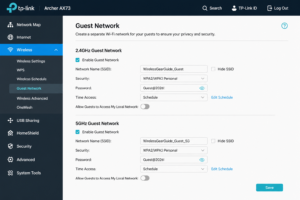
If you have guests, smart home devices (TV, cameras, thermostats), or IoT devices, put them on a separate guest Wi-Fi network isolated from your main network. This way, if a smart home device is compromised, the attacker can’t access your computers and phones on the main network.
Step 6: Keep Router Firmware Updated
Router manufacturers regularly patch security vulnerabilities through firmware updates. Many home routers run outdated firmware for years because the owner never checks. Log into your router admin panel and enable automatic firmware updates, or check manually once a month. Major security vulnerabilities like KRACKs attack (a WPA2 weakness discovered in 2017) were patched through firmware updates.
Step 7: Disable Remote Management
Remote management allows you to access your router’s admin panel from outside your home network over the internet. Unless you specifically need this feature, turn it off. When enabled, it exposes your router’s admin interface to the entire internet.
Step 8: Use a Custom DNS Server
Your router by default uses your ISP’s DNS servers, which may log your browsing history and have slower response times. Switching to Cloudflare (1.1.1.1), Google (8.8.8.8), or NextDNS (which blocks malicious domains) provides better privacy, security, and sometimes faster browsing.
Step 9: Monitor Connected Devices Regularly
Make it a habit to check your router’s connected devices list monthly. Look for unfamiliar devices these could be neighbors or neighbors’ guests who have guessed your Wi-Fi password, or potentially malicious actors. If you see something unfamiliar, change your Wi-Fi password immediately.
Step 10: Consider a Network Firewall
Advanced users should consider adding a dedicated network firewall like a pfSense or OPNsense router, or a simpler option like the Firewalla Gold. These devices sit between your modem and router and provide deep packet inspection, ad blocking, VPN server capabilities, and real-time threat detection.
Related: Best Wi-Fi Routers 2026: Security-Focused Options — WirelessGearGuide.com
Related: How to Fix Slow Wi-Fi: 12 Proven Tips — WirelessGearGuide.com
Related: Wi-Fi 6 vs Wi-Fi 6E vs Wi-Fi 7: Which Do You Need? — WirelessGearGuide.com


Leave Comment